Odia Captioning,
Made by Desi Creators,
For Desi Creators

Accurate Odia captions, native script or Roman, in seconds

Accurate Odia captions, native script or Roman, in seconds

Trusted by over 200,000+ Users

4.9

Select your Language

Select your Language

Select your Language

Select your Language

Select your Language

Say it in Odia. Read it back, word for word.

ଏହି ଭିଡିଓ ଶେୟାର କରନ୍ତୁ

Please share this video

Odia as its own language, not a Bengali guess

Aji ame Puri jacchiyou said jauchu

Odia isn't on most caption lists, so you pick Bengali or Hindi and get their verbs back under your audio. Models with more Bengali than Odia data hear Odia words in Bengali shapes, and the related vocabulary makes the output look plausible when it isn't. Kalakar lists Odia as its own language, tuned on Odia as it's spoken in Odisha, and mixed Hindi or English comes back in one pass.
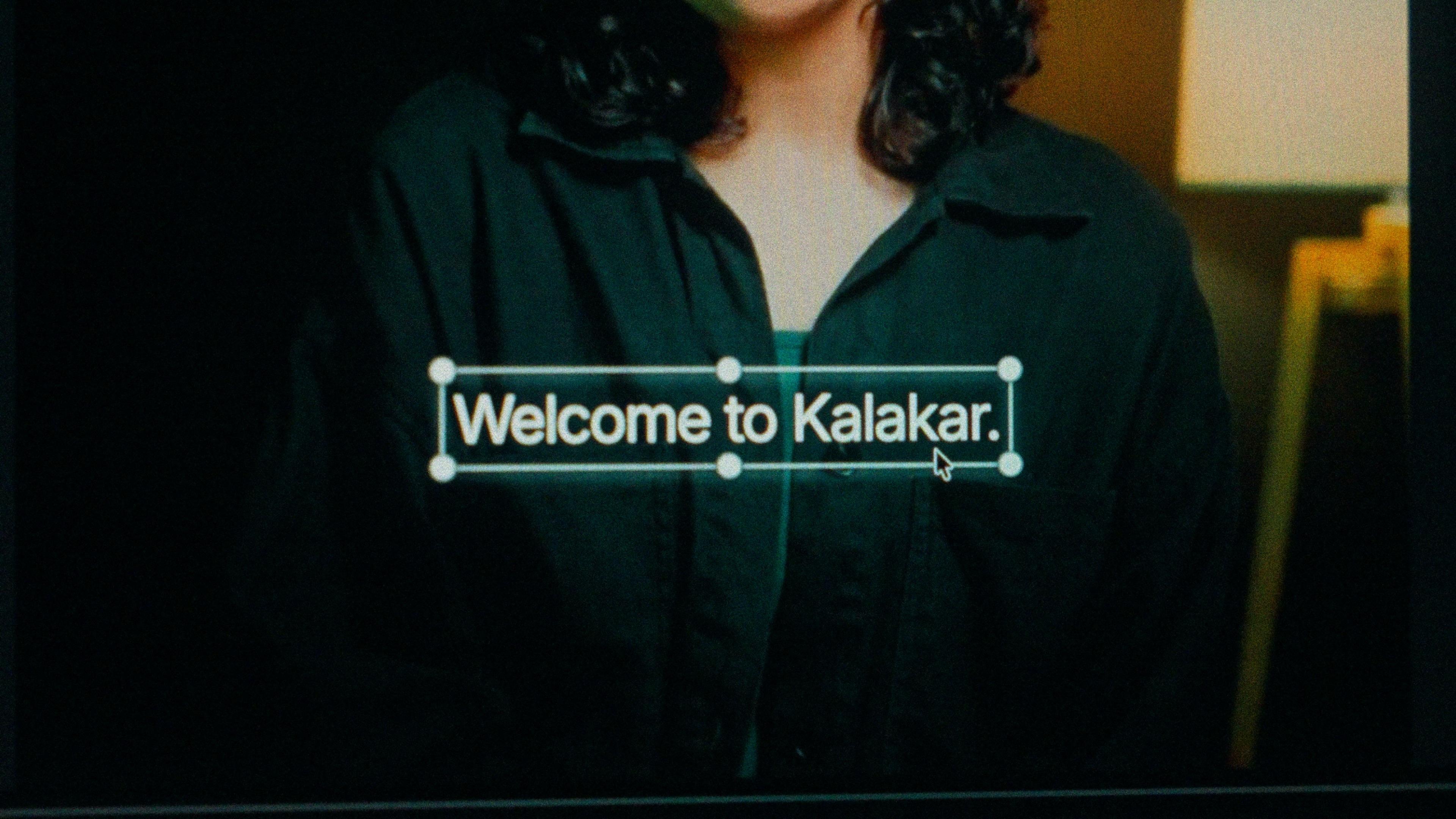
A finished caption selected on the video canvas in Kalakar

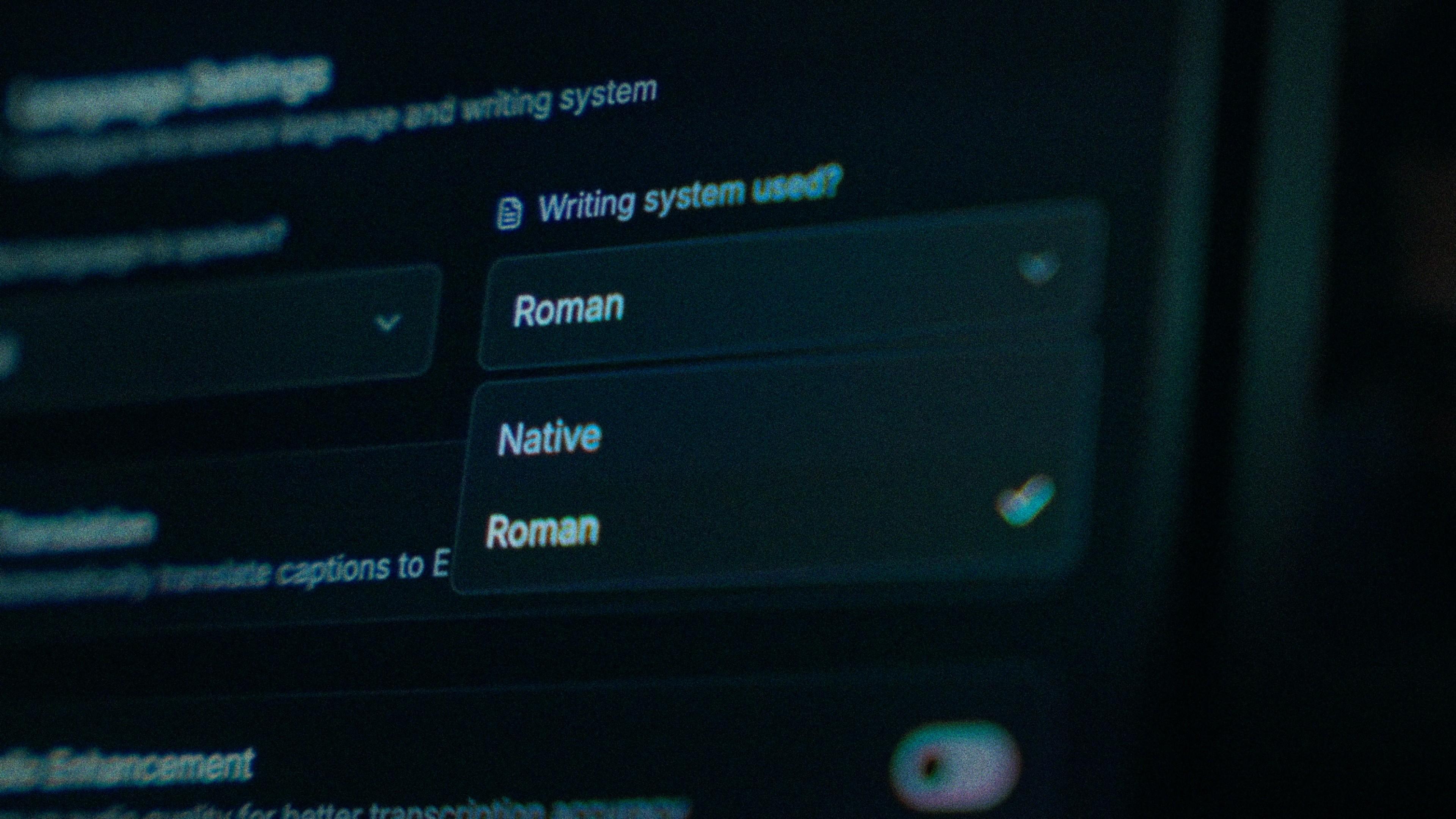
Odia script or Roman Odia. One setting, both ways.

Odia script for news commentary, education, devotional content around Jagannath, and film and music clips; Odisha's regional media keeps its readers in the script daily. Roman Odia for fast comedy, vlogs, and the younger viewers and diaspora in Bengaluru, Hyderabad and Delhi who already type Odia in English letters. Kalakar generates either from the same transcription, so you pick once and switch without re-editing.

The Writing System setting, offering Native and Roman

Fix the Bengali verb, leave the line alone.

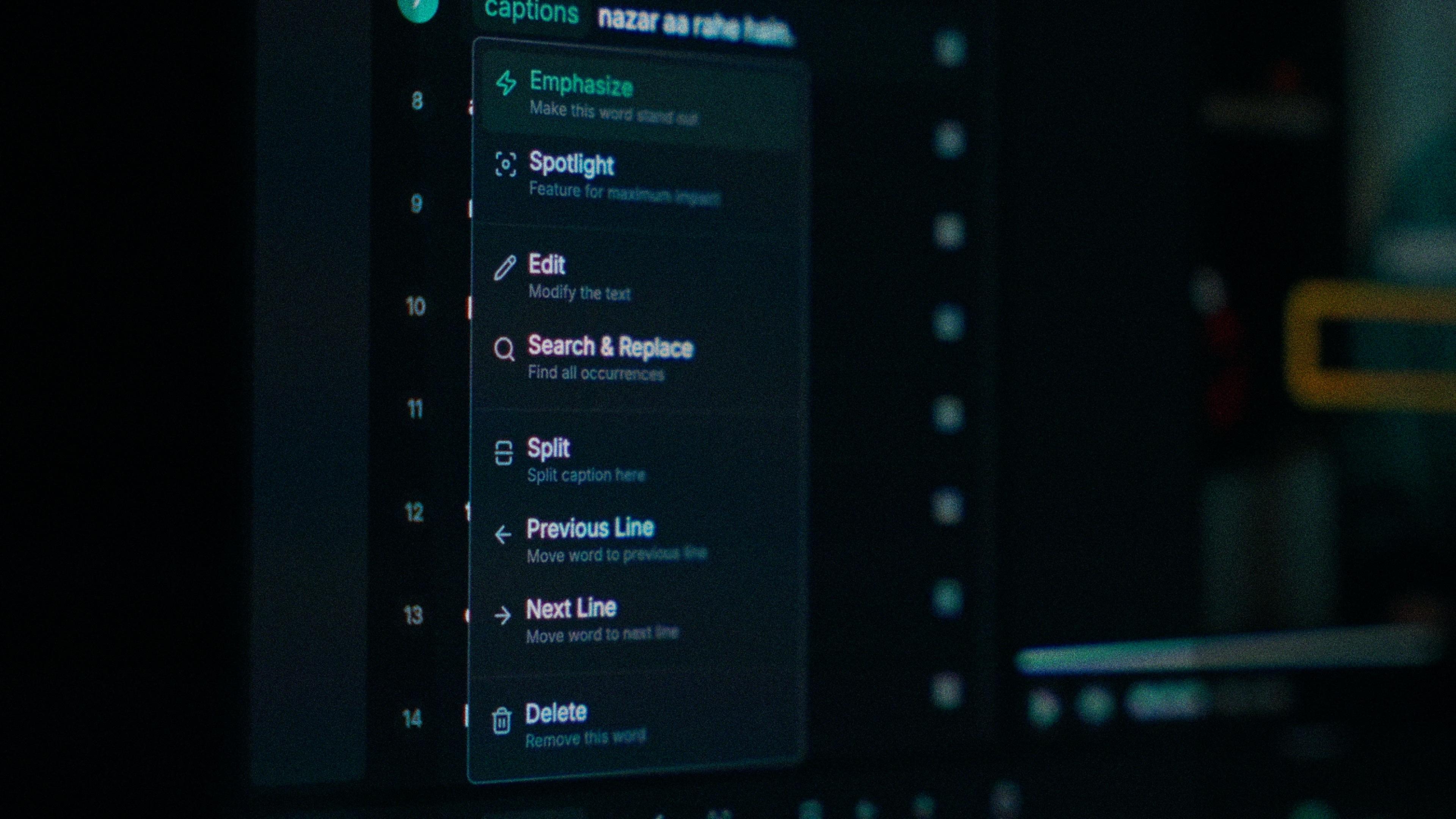
Every word carries its own timing, so correcting one doesn't move anything around it. When a verb ending comes back in its Bengali shape, you tap that word and type yours. Food and festival words land wrong most often, pakhala, dahibara aludum, chhena poda, so check those first. Find and replace clears the repeats, and a stacked conjunct like କରନ୍ତୁ stays stacked on the template after you've touched it.

One word of a caption with its menu open: Emphasize, Spotlight, Edit, Search and Replace, Split, move to the previous or next line, Delete

Puri crowds in the audio? Clean them first.

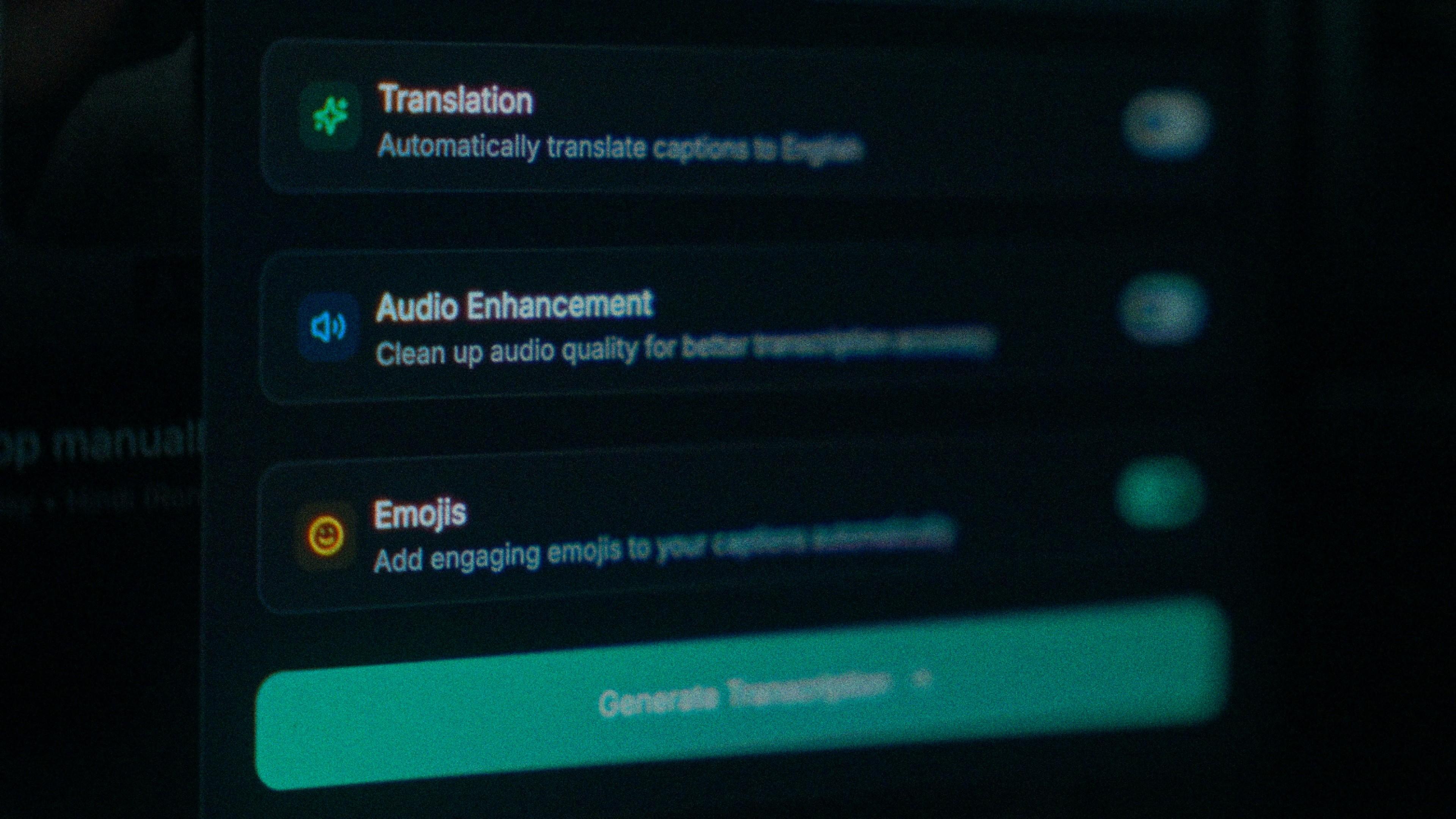
A reel shot straight to camera in a Puri crowd carries the crowd with it, and noise costs you accuracy before a single word is recognised. Turn on audio enhancement and Kalakar transcribes from cleaned audio instead. It matters more for Odia than most languages, because a model already leaning towards Bengali guesses harder when the signal is muddy. Run it before you generate, not after.

The Translation, Audio Enhancement and Emojis switches

How to caption Odia in Kalakar

Select Odia by name, not Bengali, and the rest follows. Export a burned-in MP4 for Reels and Shorts, an SRT or VTT for YouTube, or an alpha render for Premiere Pro and DaVinci Resolve, and check one stacked conjunct in the player that will draw it.

  1. Upload your video. Drag an MP4 or MOV into app.kalakar.io. Vertical 9:16 for Reels, Shorts and TikTok, or 16:9 for YouTube; both are supported.
  2. Select Odia as the spoken language. Pick Odia from the language menu. Turn on audio enhancement first if the recording is noisy.
  3. Choose Roman or Native script. Roman gives you Odia in English letters. Native gives you Odia script. Timings are the same either way.
  4. Edit, style and export. Fix any word in a tap, apply a caption template, then export a burned-in MP4, an SRT or VTT file, or an alpha-channel render for Premiere Pro or DaVinci Resolve.
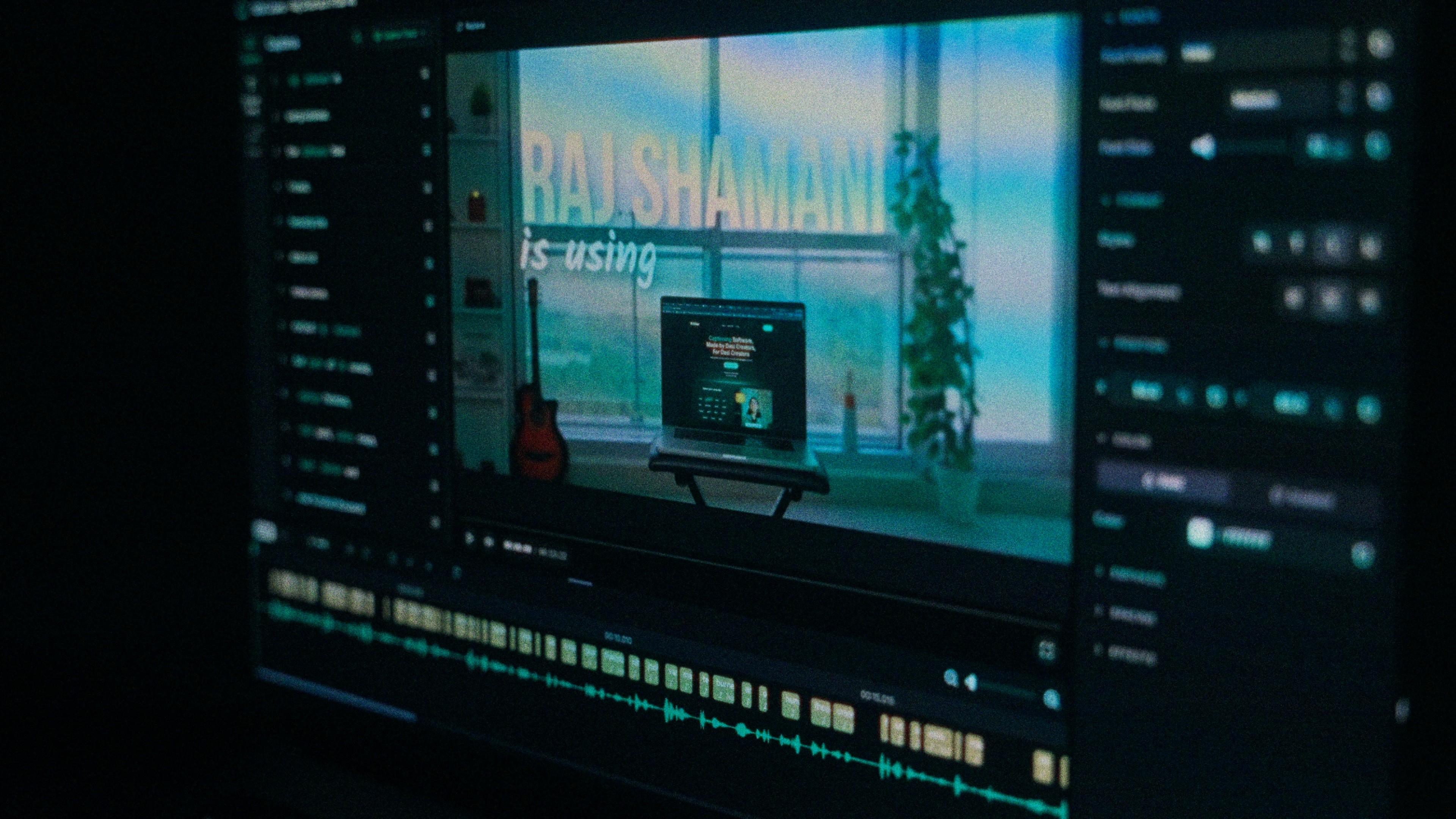
A Kalakar caption render on a Premiere Pro timeline

Odia captions, answered.

See it done once, then do it yourself.

The team's own walkthrough: upload, language, script, templates and export, in one sitting.

Then upload one Odia clip and judge the transcript yourself. Free plan, every language, no watermark on the basic templates.

Also captionedBengaliAssameseTeluguHindiAll 21